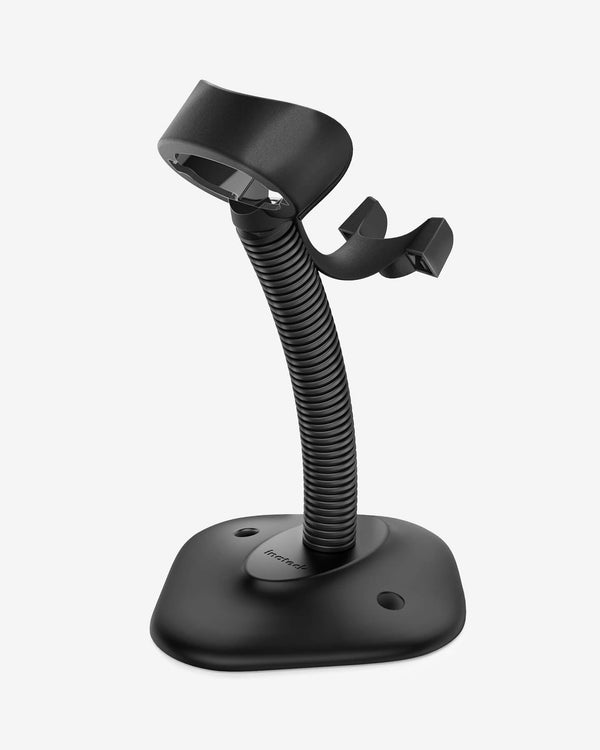
Scanning Barcodes From a Phone Screen: Why Your inateck Laser Scanners Fail
Over the past few weeks, our support team has received a strikingly uniform run of messages: the barcode scanner won't read codes from a phone.
Sometimes it's a loyalty card at the register, sometimes a digital bill of lading in the warehouse, sometimes an e-ticket at a trade show booth. The pattern is always the same — cartons and labels scan perfectly, but the moment the code lives on a display, nothing happens.
After going through these cases, one thing became clear: in the overwhelming majority, it wasn't a defect and it wasn't a misconfiguration. It came down to three causes that can be explained — and almost always solved. That's what this article covers.
1. The most common mix-up: "with Display" is not screen scanning
This is the single most frequent misunderstanding at the point of purchase.
"Scanner with a display" means the device has its own screen, showing battery level, scan count, or the last code it read. "Scans from screen" means the device can capture codes shown on someone else's phone or tablet.
One has nothing to do with the other. A scanner with a bright color display can be completely blind to a phone screen.
In the Inateck lineup, models labeled with Display are the former. Only models marked explicitly as scanning from screens — for example Scans from Screen — actually support display capture. Checking for that one phrase will save you from cross-referencing spec sheets.
2. Why a laser scanner can't see a screen
A laser scanner emits a beam and measures how much light bounces back from the black bars versus the white spaces. The pattern comes from that contrast in reflected light.
A display breaks this mechanism on three levels at once.
① The screen emits its own light. The laser method depends on "I shine, you reflect." Light from a display comes toward you instead of being reflected back from your illumination. The premise fails from the start.
② Glass reflects specularly. A phone screen is glass. A significant share of the laser beam bounces straight back into the sensor and blows out the signal. It's like pointing a flashlight at a mirror: you see blinding white, not the pattern on the surface.
③ PWM dimming makes the display flicker. Nearly every display controls brightness by switching its backlight on and off rapidly — hundreds to thousands of times per second. A laser's sampling window is measured in milliseconds and lands exactly in those on-off cycles. Every reading returns a different value, and the decoder receives a fluctuating data stream from which no complete code can be assembled.
Together, these three effects wipe out the contrast. This isn't a sensitivity problem; it's a physical limit — and no configuration setting removes it.
In fairness
Some laser scanners do read a screen occasionally, under specific conditions: display very dim, code large, angle just right, matte film applied. That's why you'll hear "well, mine works."
At a register or in a warehouse, though, "occasionally" means unusable. One failure in ten and nobody trusts the device.
3. CCD and imagers: why they can do it
The difference in one sentence: a laser measures reflected intensity; an imager captures an image first, then decodes it.
| Type | Principle | Reads screens | Typical use |
|---|---|---|---|
| 1D laser | Beam, measures reflection | ❌ No | Printed UPC/EAN at the register |
| 1D CCD | Line sensor "sees" the code | ✅ Usually yes | Short range, printed codes, entry price |
| 2D CMOS imager | Area sensor, image decoding | ✅ Yes | Screen codes, QR, DataMatrix |
A point that has to be stated clearly: 1D is not the same as laser
The industry treats "1D" and "laser" as synonyms. That's wrong.
A 1D code (UPC, EAN, Code 128) can be captured two ways: by laser, or by a CCD line sensor. CCD is an imaging technology, so it can read screens; a laser cannot. The Inateck 1D range includes both — which means the deciding question isn't "1D or 2D," it's "laser or imaging."
4. Which screens are hardest
Not every on-screen code is equally difficult. Ordered by trouble:
① Privacy screen protectors — the worst case A privacy protector is essentially a micro-louver grid that blocks light coming in at an angle. The scanner reads at an angle and gets blocked; read it head-on and you run straight into the glass's specular reflection. A display with a privacy protector is effectively a dead end for screen scanning — and it's the most commonly overlooked cause.
② Inverted codes in dark mode A normal barcode is black on white. In dark mode, many apps render a loyalty card white on black — inverted. Most scanners do not decode inverted codes by default. They aren't poorly read; they're not decoded at all. Some models let you enable support in the settings (inverse / negative imaging).
③ Too little brightness At low brightness the PWM duty cycle is small and the flicker is more pronounced — effect ③ gets amplified. Turning display brightness to maximum is the cheapest and most effective single step.
④ Blue light filters, night mode, eye comfort mode They shift color temperature and contrast, blurring an already narrow black-and-white difference.
⑤ Curved edges, cracks, fingerprints Anything that covers modules or alters the reflection path.
 5. Five steps to fix it
Work through them in order — the first three resolve most cases.
Step 1: Set display brightness to maximum. Not "bright enough" by feel — all the way up. This step solves the largest share.
Step 2: Turn off dark mode, eye comfort mode, and blue light filters. Get the code back to black on white.
Step 3: Tilt the phone 15–30 degrees. This steers around the specular reflection angle. Scanning dead-on is actually the worst position — counterintuitive, but consistently confirmed.
Step 4: Adjust the distance, starting around 6–8 inches and slowly backing off. An imager has an optimal working distance; holding it too close goes out of focus. The instinct is to move closer, which is exactly backwards.
Step 5: Switch to continuous or auto-scan mode. Each trigger pull forces a fresh focus cycle; in continuous mode the device keeps trying and hits far more often.
If that still doesn't work: enlarge the code on the display. Most loyalty apps support pinch-to-zoom, and a bigger code forgives more error.
6. Common situations
Loyalty and rewards cards Usually Code 128 or QR, displayed on a phone. These can normally be enlarged — try step 5's zoom trick first.
Digital coupons and e-tickets Watch the symbology: PDF417 and Aztec. Aztec is not supported by default on some scanners — confirm it in the specs before buying. There's a dedicated FAQ post on the Inateck blog covering this.
Boarding passes and event tickets Often in an app, often under dim light (airport, arena). Brightness on maximum, no exceptions.
Digital invoices and packing slips Typically on a tablet or laptop display — larger, and much easier than a phone.
Employee badges and ID codes A dark background means an inverted code — resolve inverse support first.
7. Which Inateck models read screens
Models explicitly built for screen capture:
| Model | Price | Features |
|---|---|---|
| Hyper A60 | $25.99 | 2D imager, USB wired, plug and play, entry price |
| BCST-54 | $89.99 | 2D, Bluetooth 5.0, smart base |
| BCST-72S | $99.99 | 2D, Bluetooth + 2.4 GHz + USB, charging cradle, scans from screen |
| BCST-73 | $119.99 | 2D, Bluetooth 5.0 + 2.4 GHz, adjustable stand |
One point is worth highlighting: screen scanning isn't a price question. The Hyper A60 is a 2D imager and costs less than the entry-level 1D laser, the BCST-33 at $35.99.
If you only ever scan printed labels, a 1D laser remains the most economical choice. But once phone displays, digital coupons, or loyalty cards enter the picture, a 2D imager is often neither more expensive nor overkill.
If you're unsure which model fits, the Barcode Scanner category has the full comparison — or just ask the Inateck support team.
8. Still not scanning? Check this table
| Symptom | Most likely cause | What to do |
|---|---|---|
| No reaction, but the laser dot is visible | It's a laser model | Switch to a 2D imager |
| Sometimes works, mostly doesn't | Reflection angle or brightness | Brighten display + tilt 15–30 degrees |
| Only reads from farther away | Wrong working distance | Start at 6–8 inches, back off slowly |
| Characters come out wrong or extra | Keyboard layout, prefix/suffix | Check configuration, reset to factory |
| Scan works, system can't find the item | Wrong digit count (12 vs 13) | See the EAN/UPC article on the Inateck blog |
| Printed codes fine, screen never works | Wrong device type | Switch to 2D |
| Nothing since the privacy protector went on | Louver grid blocks the beam | Remove the film, or use 2D head-on |
9. FAQ
Why won't my Inateck scanner read codes from a phone? Usually it's the device type. A laser judges the strength of reflected light, while a display emits its own light, its glass reflects specularly, and PWM dimming flickers. You need a 2D imager.
Can a 1D scanner read screens? It depends on the design. A 1D CCD is imaging-based and usually can; a 1D laser cannot. Calling both "1D" is a widespread industry shortcut that causes real confusion.
Nothing reads in dark mode — is the scanner broken? No. Dark mode often renders codes inverted (white on black), and most devices don't decode that by default. Switch the app to light mode, or enable inverse code support.
Do I need an app for this? No. The scanner outputs via keyboard emulation (HID) — put the cursor in a field and the characters appear. An app or the SDK is only needed for custom logic.
Which Inateck model is the cheapest with screen scanning? The Hyper A60 at $25.99, a 2D imager with a USB connection.
10. Conclusion
Behind "the scanner won't read the screen," nine times out of ten there's no malfunction — just one of three causes: a laser model in use, a display that's too dim or too reflective, or an inverted code.
Checking in that order beats fiddling with sensitivity every time — not least because on a laser, sensitivity isn't adjustable in the first place.
If it still doesn't work after all of the above, send us the model and the symptom: the Inateck support team can confirm whether your device supports screen capture.