How to Enable Auto-Scan Mode on the Inateck BCST-73
The Short Answer: No Drivers, No Extra Software Needed
One of the most common questions we get from customers about the BCST-73 is:
"Can it scan automatically without me pressing the trigger?"
Yes. And setup takes less than a minute.
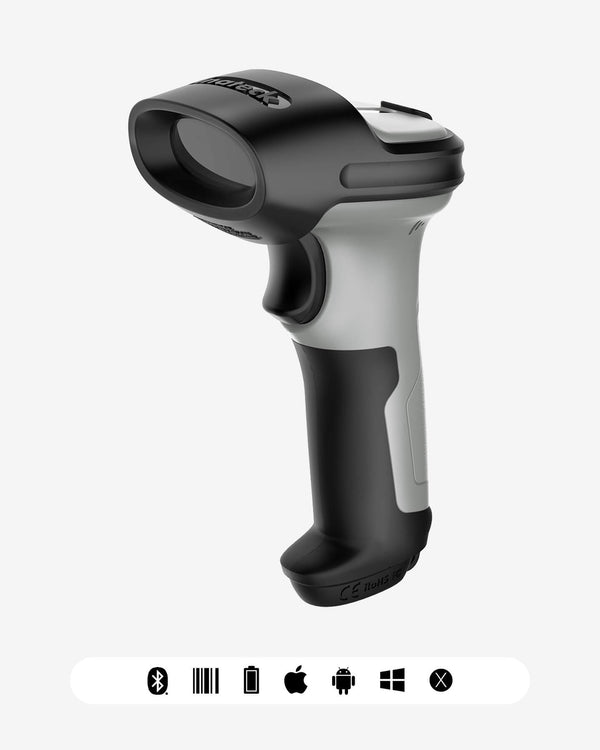
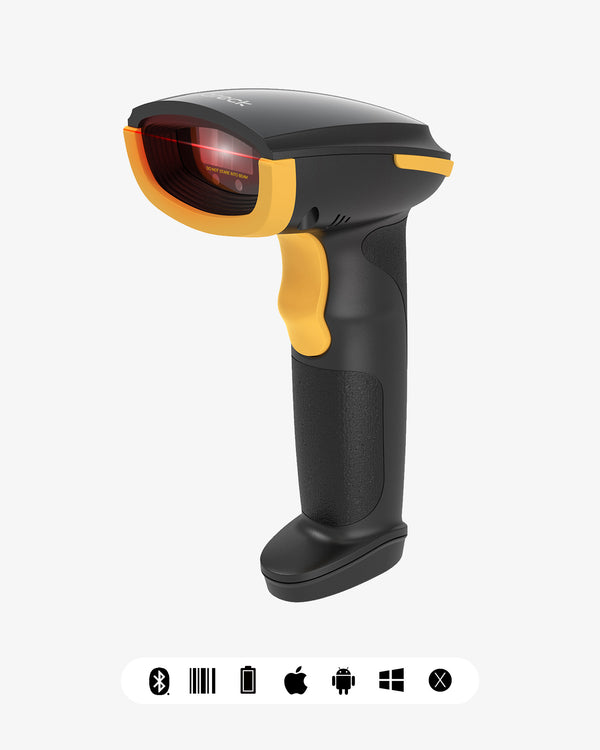
The BCST-73 is one of Inateck's best-selling 2D wireless barcode scanners. It's particularly popular with companies in the pharmaceutical industry — for pharmacy receiving, hospital consumable management, and warehouse inventory at pharma companies. What these scenarios have in common: high scan frequency and hands that are often occupied. Auto-scan mode delivers a noticeable efficiency boost.

What Is Auto-Scan Mode?
Normally, you need to pull the trigger for the scanner to read a barcode. Auto-scan mode (also called induction mode or continuous scan mode) works differently:
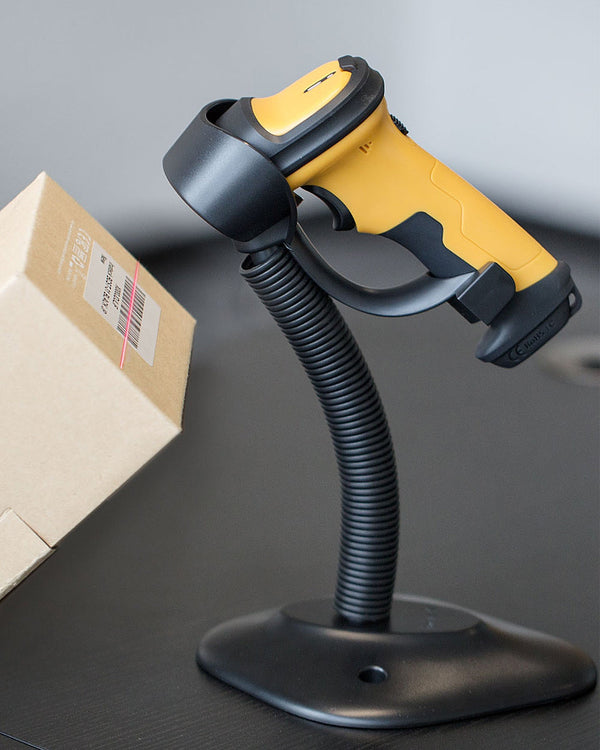
When an object comes near the scan window, the scanner triggers automatically — no button press required.
Remove the object, and scanning stops. Bring it back, and it triggers again automatically.
For typical pharmaceutical workflows — like pulling medication from a shelf or scanning consumable packaging — this mode lets the operator work one-handed, while the other hand retrieves items or operates the computer.
How to Enable Auto-Scan Mode
❶ Method 1: Scan the Setup Barcode (Fastest)
The user manual contains a barcode for "Auto-Induction Mode." Scan it with the BCST-73, and after a confirmation beep, the mode is switched.
To switch back from manual mode to auto mode, simply scan the corresponding barcode again.
❷ Method 2: Configure via the Inateck Scanner App (More Intuitive)
If the manual is lost, or scanning setup barcodes feels cumbersome, you can download the Inateck Scanner App (available for iOS and Android).
Connect your BCST-73 to the app, navigate to the scan mode settings, and select "Auto-Induction Mode." The app also lets you check battery status, adjust vibration feedback, and edit prefixes or suffixes.
Note: Some BCST-73 units with a serial number before 3C29 may require a firmware update before the app can be used. If you have questions, please contact our support team.
Which Scenarios Suit Auto-Scan Mode?
| Scenario | Why It Works |
|---|---|
| Pharmacy receiving | Continuous scanning without repeatedly pressing the trigger — faster |
| Hospital consumables | Both hands often occupied — auto-scan reduces steps |
| Pharma warehouse inventory | Pairs with inventory mode — stores up to 270,000 barcodes |
| Retail checkout | Continuous item flow — no individual presses needed |
| Library check-in/out | Scan multiple books in sequence — higher efficiency |
If you're only scanning a few barcodes at a time, manual mode is actually more power-efficient. But for dozens or hundreds of barcodes in a row, the advantage of auto mode is unmistakable.
Why the Pharmaceutical Industry Especially Favors the BCST-73
We've noticed that pharma customers share several common requirements for a barcode scanner:
① Must read barcodes on screens. The BCST-73 supports 1D and 2D barcodes, reading both paper and screens. Since many drug tracking codes and prescription codes are now digital, this is a critical advantage.
② Battery must last. The 2600mAh battery delivers 11–12 hours of continuous operation under intensive use. A full shift without recharging.
③ Must survive drops. Pharma warehouses often involve carrying the scanner between shelves, and occasional bumps are inevitable. The BCST-73 has a 360° TPU protective shell, twice as thick as conventional scanners, withstanding drops from up to 2 meters.
④ Inventory mode is practical. During stocktaking, the scanner doesn't need to stay connected to a computer — it stores barcodes itself, up to 270,000. Upload them all at once afterward — far more efficient.
⑤ Timestamp capability. The pharmaceutical industry has high traceability requirements. Automatically adding a timestamp when scanning makes later tracking much easier.
Other Useful Features
Beyond auto-scan, there are several BCST-73 features worth knowing:
Vibration feedback – Can't hear the beep in a noisy environment? Enable vibration for tactile confirmation on a successful scan.
Inventory mode – Offline scanning and barcode storage, ideal for stocktaking and mobile inspections.
Timestamp – Automatically adds a time marker to each scanned barcode — ideal for traceability scenarios.
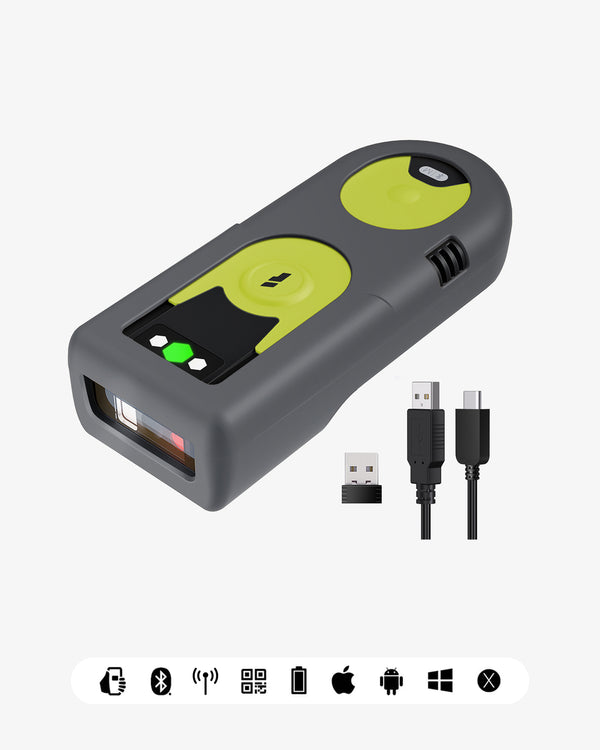
Three connection modes – Bluetooth 5.0, 2.4GHz USB adapter, USB cable. Bluetooth for mobile use, 2.4GHz for fixed workstations, cable for extended continuous operation.
App and SDK support – The Inateck Scanner App handles basic configuration. If you need to integrate scanning into your own system (such as a pharmacy ERP or hospital consumable management system), Inateck provides an SDK.
Supported Barcode Types
| Type | Supported Formats |
|---|---|
| 1D | Code 128, EAN-13, EAN-8, UPC-A, UPC-E, Code 39, Code 93, Codabar, Interleaved 2 of 5, Standard 2 of 5, Industrial 2 of 5, Matrix 2 of 5, IATA 2 of 5, MSI, Code 11, ISBN, ISSN |
| 2D | QR Code, PDF-417, Aztec Code, Maxi Code, Data Matrix, Han Xin Code |
What's in the Box
-
BCST-73 Barcode Scanner × 1
-
USB Cable × 1
-
Instruction Manual × 1
-
Wireless Adapter × 1
Summary
Setting up auto-scan mode is simple — scan one barcode or tap once in the app. But the efficiency gain is unmistakable in pharmacy, retail, and warehouse environments with high scan frequency.
The BCST-73 sells well in the pharmaceutical industry not just because of auto-scan mode, but because battery life, durability, inventory mode, and screen-scanning capability together match exactly what the industry needs.
If you have questions about setting up auto-scan mode, or want to know whether the BCST-73 fits your business, feel free to contact us.
The Inateck BCST-73 is now available in the official Inateck store. Check the store for current prices and promotions.